Request
Capture calls, emails and customer messages while the context is fresh.
 Cuotaro
Service operations software
Quote and job tracking
Prepare itemized quotes and email the PDF from Cuotaro. Follow up with reminders, then create a linked job when the customer accepts the work.
Capture calls, emails and customer messages while the context is fresh.
Build priced lines, totals and customer-ready PDF quotes.
Schedule accepted work and keep notes, maps and files together.
Track due dates, collections, refunds and unpaid work.
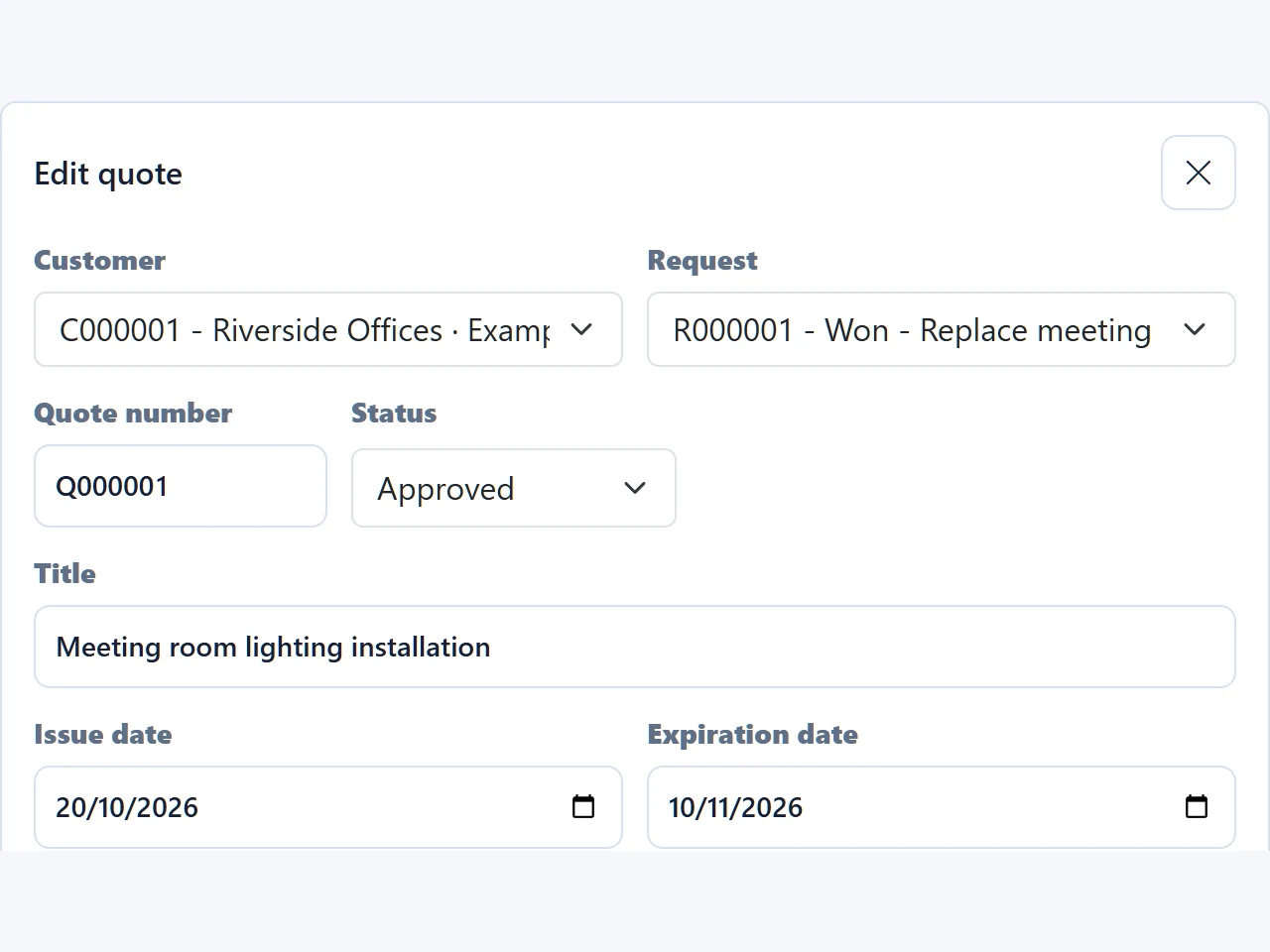
A clear quote tells the customer what you will do and how much it will cost. Add line items with quantities, unit prices, discounts and the appropriate tax, then generate the PDF in Cuotaro.
When you email the quote from Cuotaro, the PDF is attached by default. You can also include selected customer files. Customer notes belong in the proposal; internal notes keep supplier comments or other team information separate. The selected sender is used as the reply-to address.
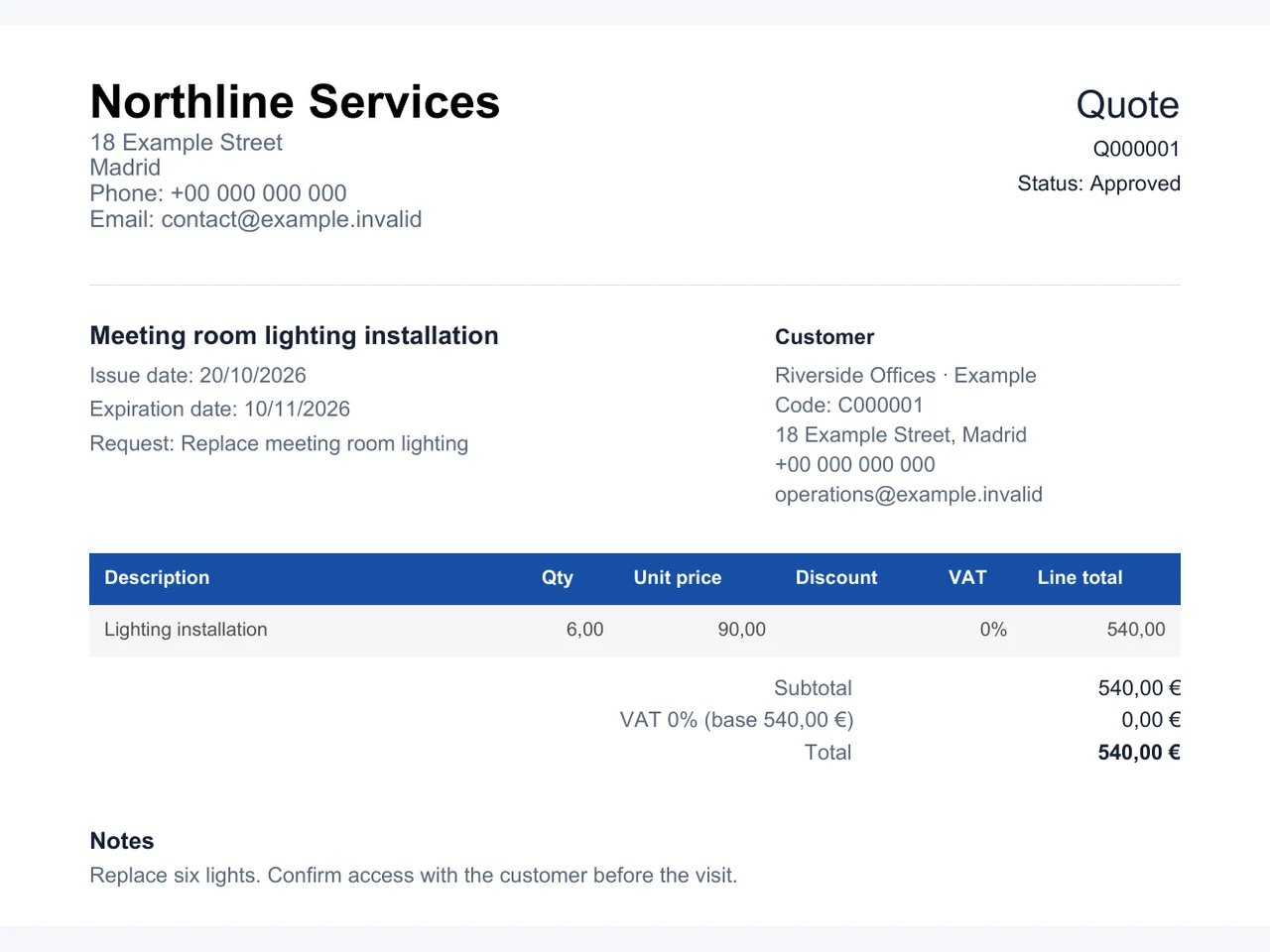
The fictional example below prices the replacement of six lights and shows the customer, request reference, issue and expiry dates, line items and total. The PDF uses the date, currency and tax formats configured in Settings.
Link the quote to the customer and the original request when one exists. Keep the scope, pricing, files and notes easy to find when the customer asks a question or the team prepares the job.
Sending the PDF is only one stage. If the customer needs time to decide, set a reminder to follow up on an agreed date. When they reply, record the outcome and update the quote's status so the team knows whether to clarify the proposal, schedule the work or close the quote.
Reminders prompt the assigned team member to act. They are not automatic customer email sequences, and Cuotaro does not track whether the customer has opened the quote. Your team handles the conversation and keeps the record up to date.
If you currently track proposals in a spreadsheet, try the free quote follow-up template and its English tutorial. They show how to record the sent date, response and next action before moving to a connected quote and job workflow.
For a step-by-step guide to preparing proposals, see how to create and track service quotes.
Whether you call the document a quote, quotation or estimate, the practical questions are the same: has it been sent, has the customer responded and what needs to happen next? Review the current status alongside your notes and reminders.
Once the customer accepts, update the quote status and create the linked job. Add the service address, assigned user, scheduled date and start and end times, along with the checklist, files and instructions needed for the visit.
For the lighting example, the accepted quote leads to a job to install six meeting room lights. The job retains references to the customer, request and quote, so the team can check what was agreed while preparing and carrying out the work.
A quote is not compulsory for every job. When the work is already agreed and no proposal is needed, you can create the job directly from the request.
See how to schedule service jobs from approved quotes.
Finishing the work does not always mean the money has arrived. Link a payment record to the customer and the relevant quote or job, record the expected amount and due date, and enter the paid date when payment is received.
This gives the team a record of what remains outstanding and which work it relates to. Cuotaro supports operational payment follow-up alongside your invoicing and accounting system; it does not issue tax-compliant invoices or replace bookkeeping.
After the job, review pending payment tracking alongside your accounting system.
A spreadsheet can track sent dates and responses. As more people handle quotes, visits and follow-ups, the repeated work is keeping the spreadsheet, PDF folder, calendar and customer notes consistent.
Cuotaro connects requests, quotes, jobs, files, reminders and payment records. It suits small installation, repair and maintenance businesses that need to follow the work from proposal to completion and payment. Check specialist requirements such as advanced dispatching, inventory or detailed job costing separately.
Questions
It connects customer proposals with the work that follows. Cuotaro lets you prepare itemized quotes, generate and email the PDF, keep status and follow-up reminders up to date, and create a linked job when the customer accepts.
Yes. Create line items with quantities, prices, discounts and tax, then generate the PDF. When you email the quote from Cuotaro, the PDF is attached by default, and you can include selected customer files.
Create a reminder linked to the customer and quote, with a due date and assigned team member. Email reminders go to that person. Your team contacts the customer and records the response; Cuotaro does not send automatic customer follow-up sequences or track email opens.
Yes. Update the quote status after the customer accepts, then create a linked job with the schedule, assigned user, service address, checklist, notes and files.
Cuotaro does not provide an online quote acceptance portal. Obtain the customer's response through your usual communication channel, record the outcome and update the quote status yourself.
Yes, if you need to track service proposals, customer responses and the jobs that follow. Cuotaro keeps the pricing, status, files and reminders with the customer and linked work.
No. It creates quote PDFs and tracks operational payment information, including expected amounts, due dates and paid dates. Tax-compliant invoicing, bookkeeping and full job costing remain with specialist tools.
Yes. Download the English CSV template for Excel or Google Sheets and use the tutorial to plan a simple follow-up routine. The template is a standalone spreadsheet, not an import file for Cuotaro.
Product information
Tell us about your service business and we will reply with the Cuotaro information that is most relevant to you.
Already working with Cuotaro?
Open the appNext step
Try TEAM 2 with your own service work for 21 days: 2 users, 8 GB storage and full functionality. No payment details required. If you prefer to ask first, use the form and we will reply by email.